Changelogs
Stay up to date with the latest changes and enhancements.
Stay up to date with the latest changes and enhancements.


24. Jul 2026
Share
This update helps you prepare deals earlier, bring in property media faster, and share a more polished buyer experience. The biggest change is a complete redesign of Genius Marketing property links, alongside CompanyCam imports and Genius Reach in Pre-Marketing.
 Highlights
Redesigned property links: Share cleaner, buyer-ready pages with clearer property details, improved image layouts, maps, condition information, and additional deal context.
CompanyCam imports: Paste a public CompanyCam gallery link to bring supported photos and videos into the Genius Marketing Suite.
Genius Reach in Pre-Marketing: Start finding buyers before a deal moves beyond Pre-Marketing.
 A better property link for every buyer
Genius Marketing property links have been redesigned from top to bottom. Buyers can now understand a deal faster on desktop, tablet, or mobile.
Clearer property overview: Present asking price, ARV, beds, baths, living area or lot size, and property type in a scannable layout.
Better media presentation: Use responsive image layouts, category labels, a full-screen gallery, and dedicated areas for videos, documents, and related links.
Location context: Display an exact or approximate map location based on your address visibility settings.
Condition and additional information: Show available roof, HVAC, plumbing, foundation, selling point, and resource details in organized sections.
Built for real listings: The new layout handles missing information, image-loading failures, land acreage, and loading or error states without breaking the buyer experience.
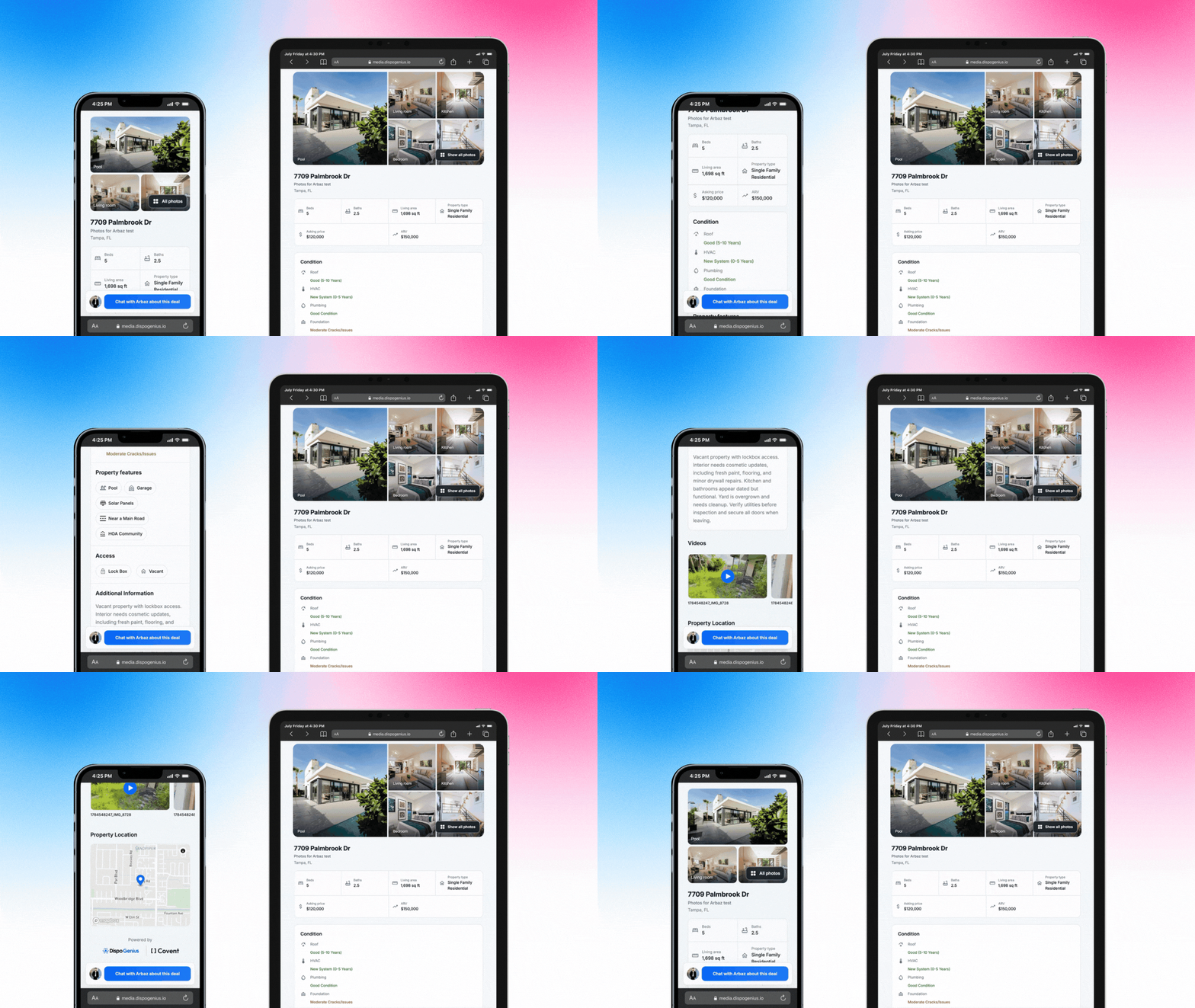
Image 1 – Redesigned property link across phone, tablet, and desktop
 Import property media from CompanyCam
You can now bring CompanyCam media directly into the Genius Marketing Suite.
Open a deal and go to the Genius Marketing Suite.
Paste a public CompanyCam gallery link under Import from cloud storage.
Select Import. Dispo Genius will validate the link, analyze the gallery, and upload supported media automatically.
Photos are added to the property gallery, while supported videos are organized under Resources. Existing gallery validation and import limits remain in place.
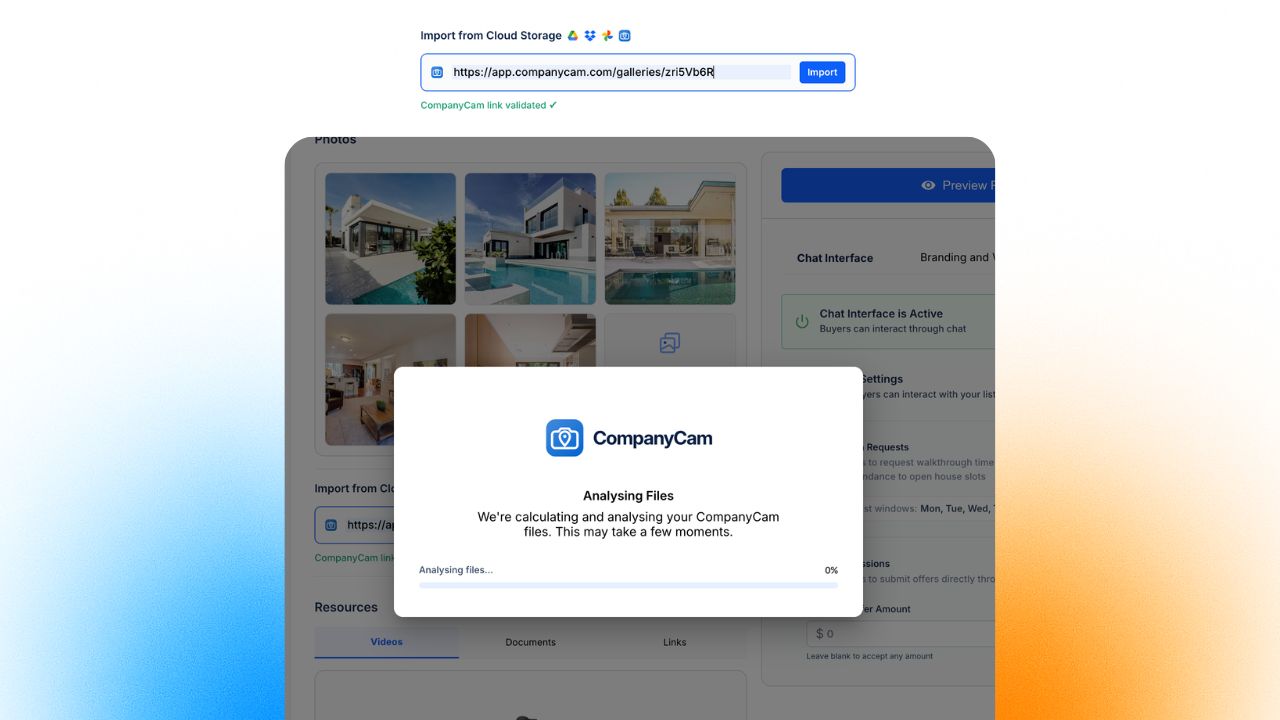
Image 2 – Import property photos and videos from a public CompanyCam link
 Use Genius Reach during Pre-Marketing
Genius Reach is now available while a deal is still in Draft/Pre-Marketing. You can begin finding prospective buyers earlier without moving the deal into a later stage first.
Add an asking price and select at least one strategy type before activating Genius Reach. If either value is missing, Dispo Genius will show what is required. Saved updates also refresh when you open Genius Reach, so you no longer need to reload the page.
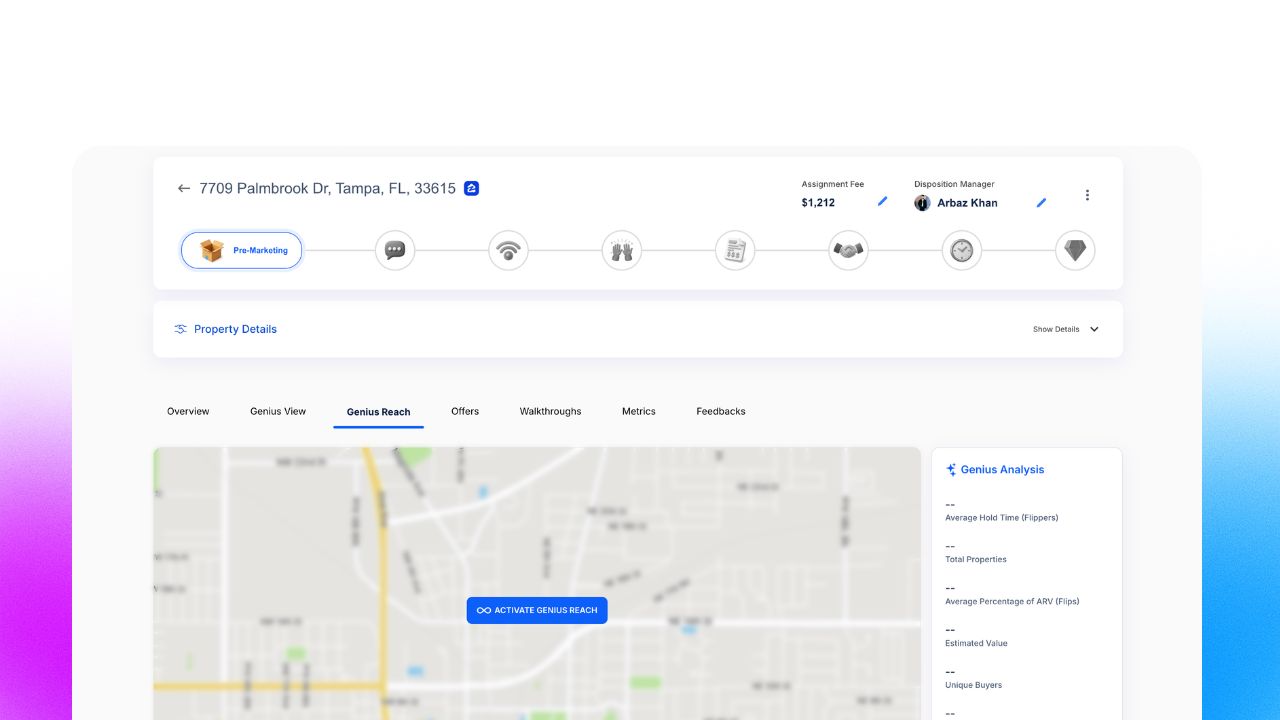
Image 3 – Genius Reach available during Pre-Marketing
 Coming next
The following improvements are in active development and are coming very soon:
Create a company-wide profile with your name, logo, icon, colors, markets, and listing preferences. Share one URL where buyers can browse your available deals, open a listing, and interact with your company.
Furthermore, potential buyers can also submit their details to apply to become vetted buyers in your system.
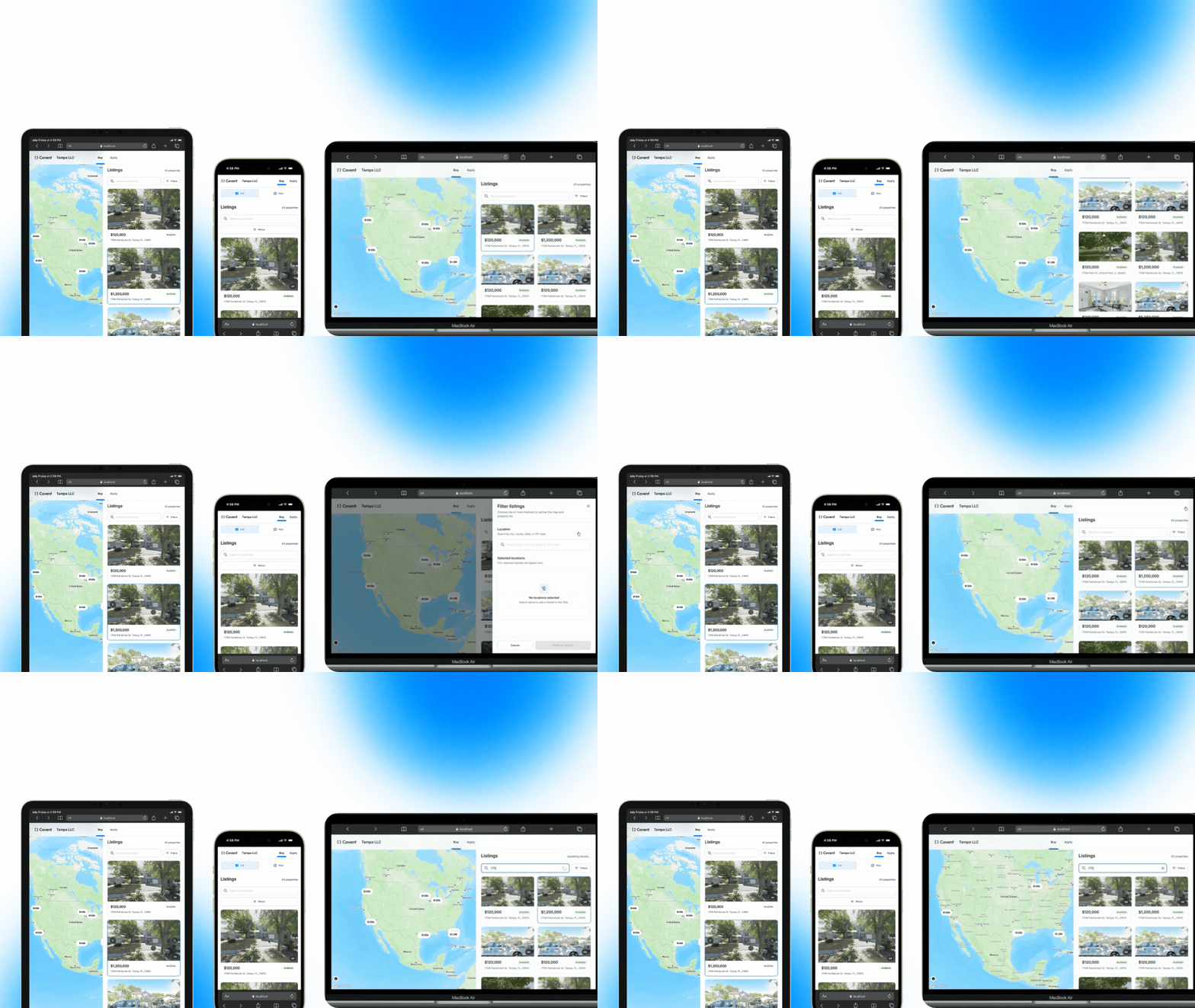
Image 4 – Public company profile on desktop and mobile
You will also be able to choose which listing statuses appear and hide individual listings from the public page.
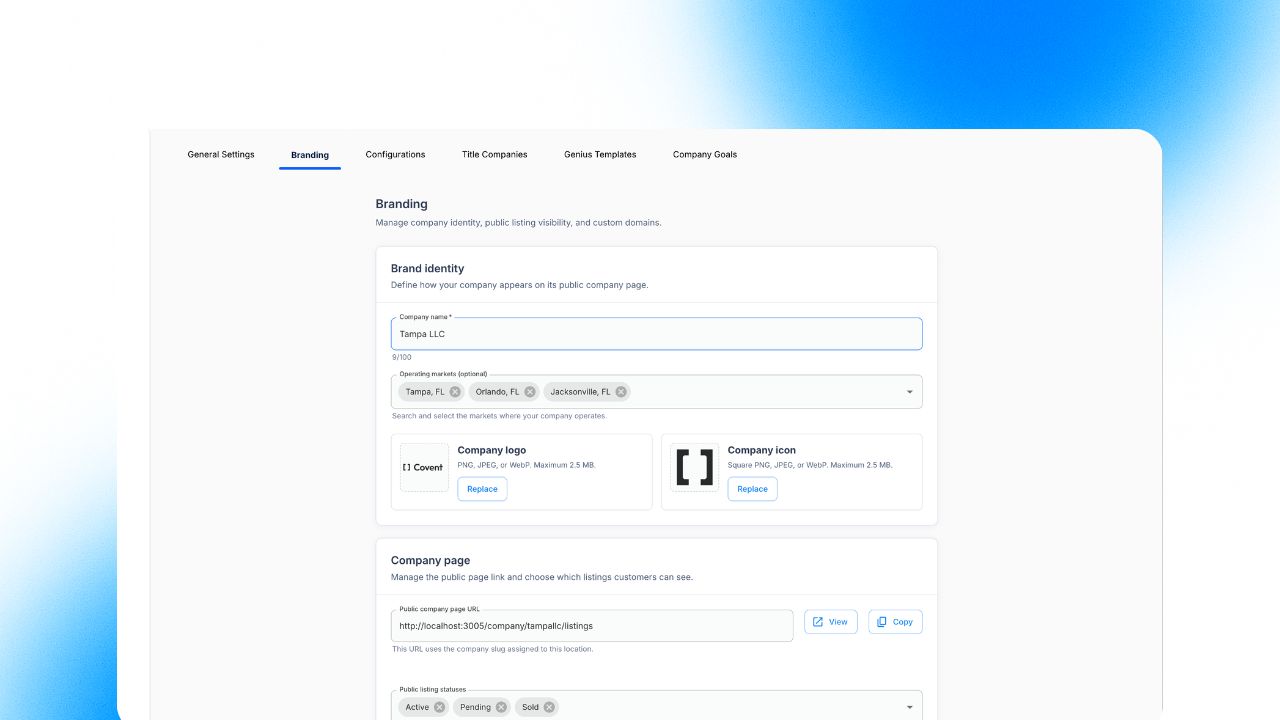
Image 5 – Branding settings for company identity and listing visibility
Connect and manage a custom domain from Branding settings. This removes the need to ask the team to configure a branded property or company URL for you.
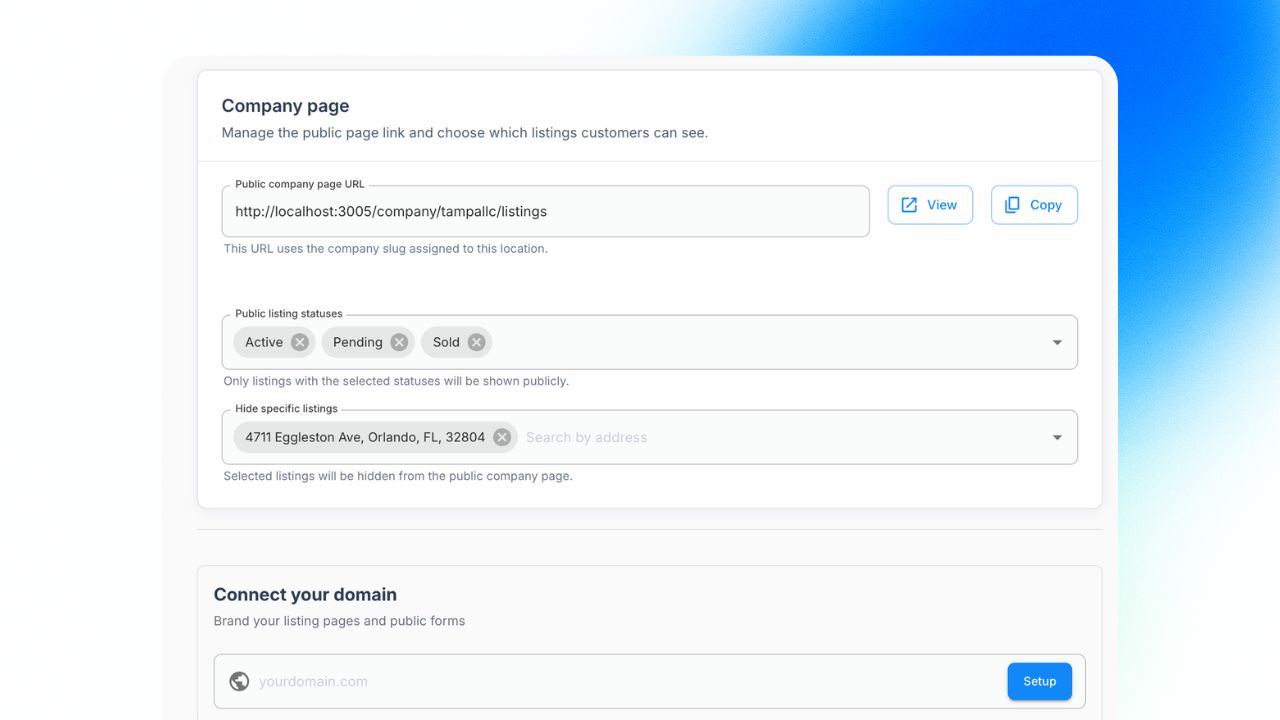
Image 6 – Company URL, listing visibility, and custom domain controls
A universal walkthrough calendar will give your team one place to see assigned walkthroughs, switch between month, week, and list views, and filter by listing or timezone.
You will also be able to create, edit, reschedule, and cancel walkthroughs without opening each deal individually.
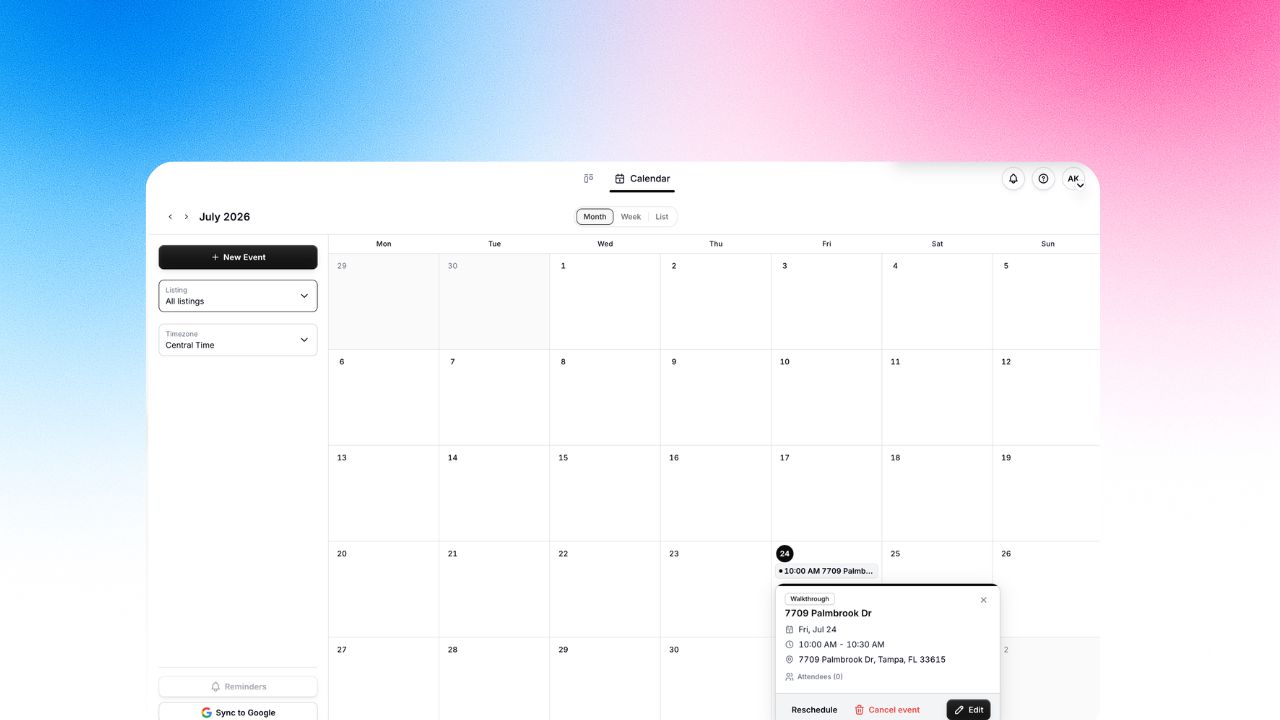
Image 7 – Universal walkthrough calendar with month, week, and list views
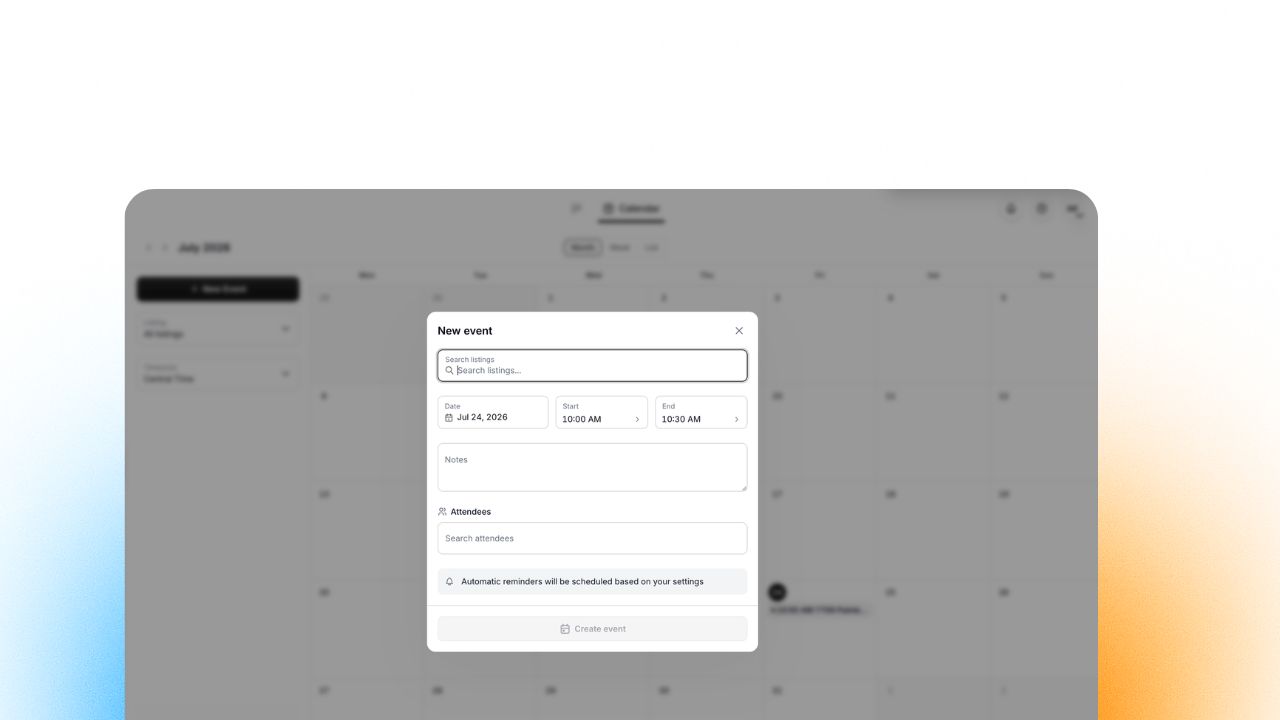
Image 8 – Create a walkthrough with listing, time, notes, attendees, and reminders