Changelogs
Stay up to date with the latest changes and enhancements.
Stay up to date with the latest changes and enhancements.

04. Aug 2026
Share
Your company page and walkthrough calendar are now live. You can give buyers one branded place to browse your listings, decide which deals appear, connect your own branded domain, and manage walkthroughs without opening each deal. All from one single unified place.
 Highlights
Public company page: Share one branded link where buyers can search, filter, and browse your available deals.
Brand identity: Set your company name, operating markets, logo, and icon from Settings.
Listing visibility: Choose which deal statuses appear and hide specific addresses.
Custom domains: Connect and verify your own domain without asking the team to configure it.
Walkthrough calendar: Manage schedules, attendees, and reminders from the Deals page.
 A public storefront for your deals
Your public company page is more than a list of available deals. Buyers can browse your listings, open any property, and review the information they need to decide whether it fits, all from a page that carries your branding and works across desktop, tablet, and mobile.
Complete property overview: Show the asking price, ARV, beds, baths, living area or lot size, and property type in a clear, scannable layout.
Photos and resources: Present property photos in a responsive gallery, with dedicated sections for videos, documents, and related links.
Location and condition details: Include an exact or approximate map location, along with available roof, HVAC, plumbing, foundation, selling points, and additional property information.
Search, filters, and views: Let buyers search by address, city, state, county, or ZIP code, then switch between map and list views.
Buyer application form: When enabled, visitors can apply to join your buyer list directly from the company page.
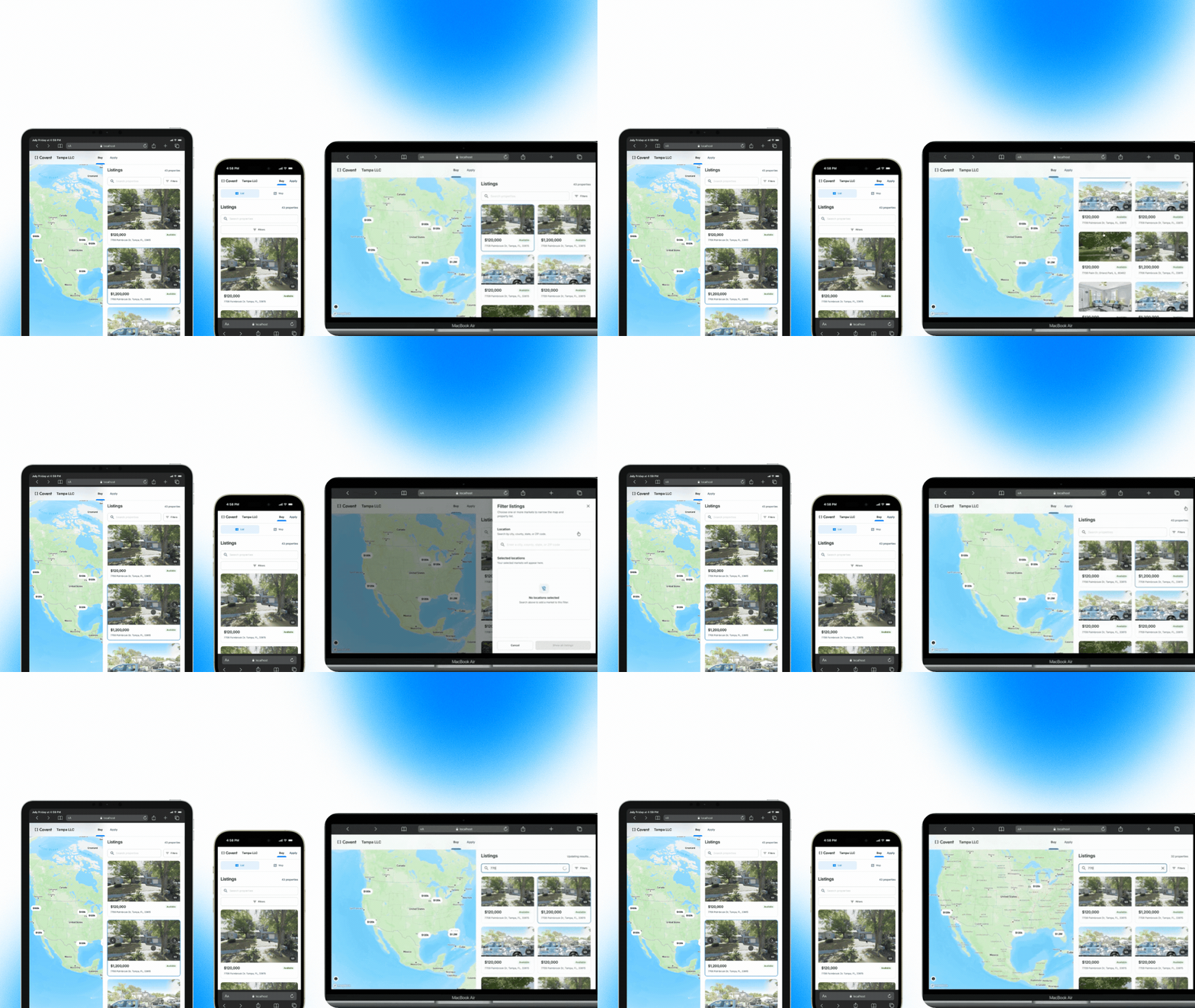
Image 1 – Public company page on desktop and mobile
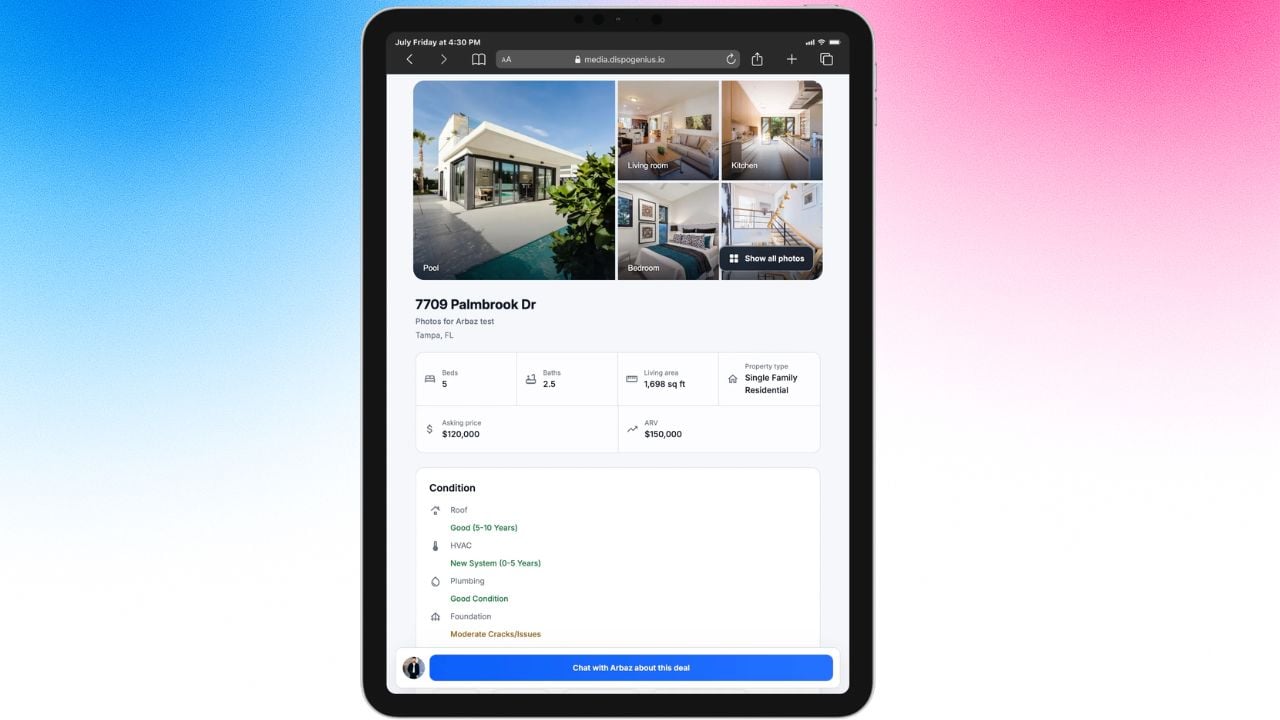
Image 2 – Property Details Page
 Put your brand front and center
Go to Settings → Branding to manage how your company appears on its public page.
Brand identity: Add your company name, logo, and square icon.
Operating markets: Add the cities, counties, or states where your company sells properties.
Public listing statuses: Choose which deal statuses buyers can see.
Hidden addresses: Hide a specific address and every matching deal stays off the public page.
Shareable page link: View or copy the public company page URL from the same screen.
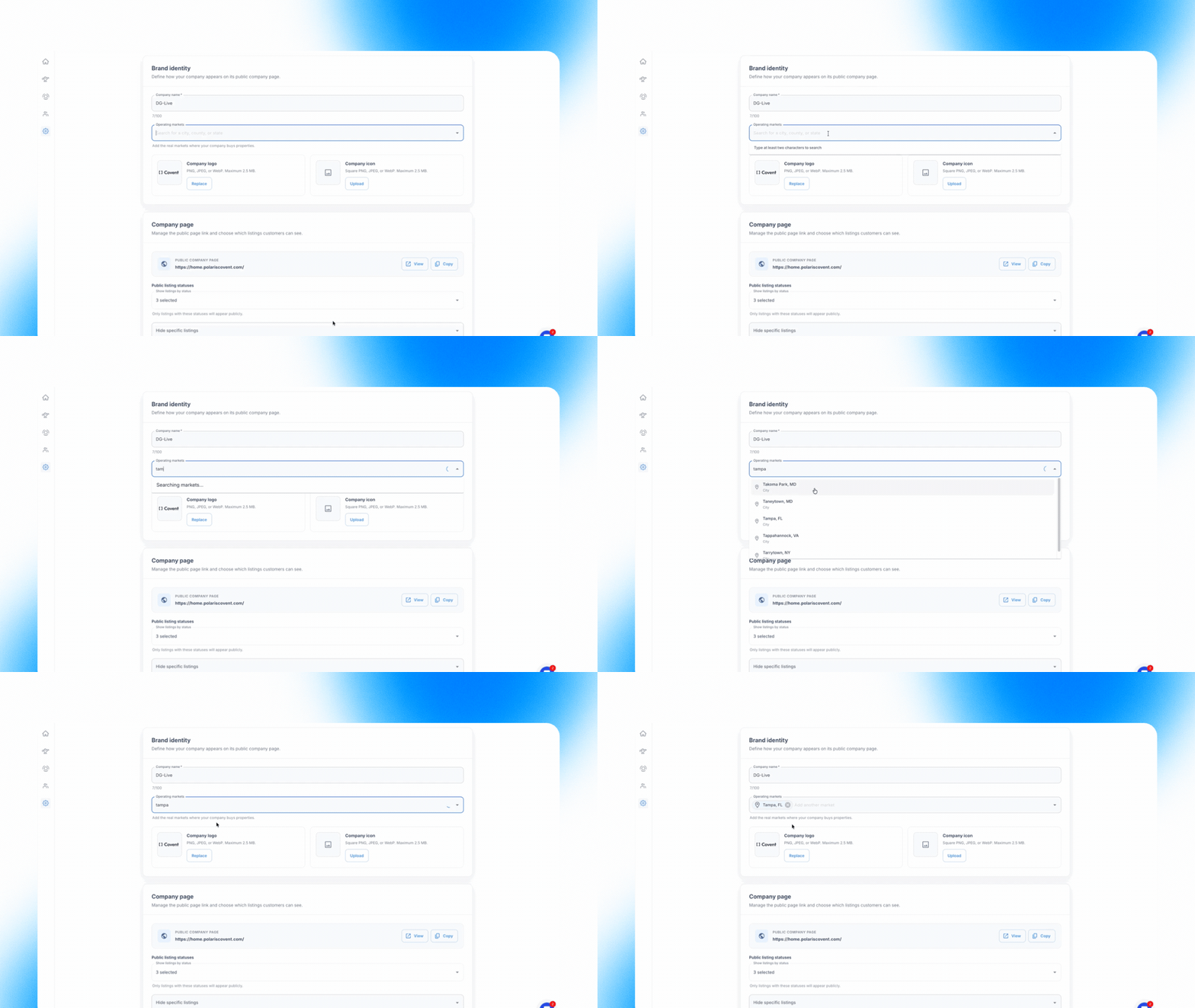
Image 3 – Brand identity, company page, and listing visibility settings
 Connect your branded domain
Connect a custom domain for your company page, listing pages, and public forms.
Guided DNS setup: Get the records for GoDaddy, Cloudflare, Namecheap, or another provider.
Simple verification: Copy the records, add them with your provider, and check the connection from Dispo Genius.
Clear status: See the connected domain and public hostname directly in Branding settings.
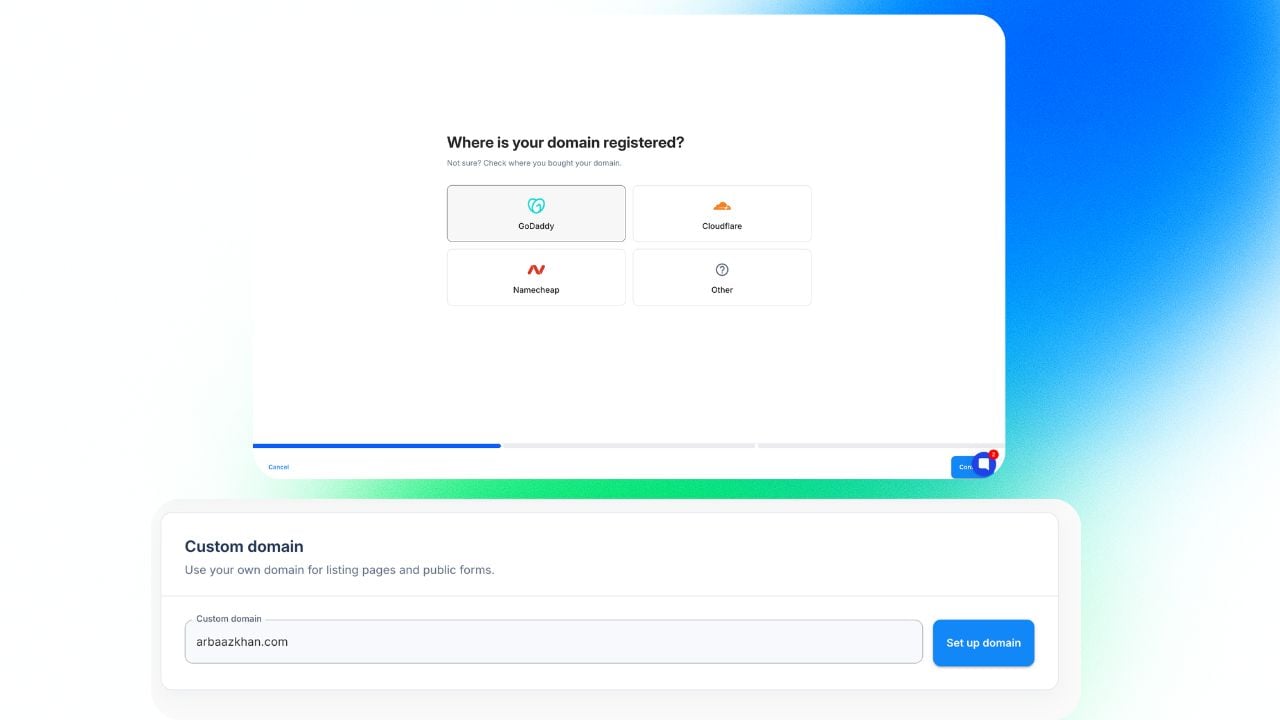
Image 4 – Custom domain setup and connected public hostname
 Manage every walkthrough from one calendar
Open Deals → Calendar to see scheduled walkthroughs across your listings without opening each deal.
Flexible views: Switch between month, week, and list views.
Focused schedules: Filter by listing or timezone.
Event management: Create, edit, reschedule, or cancel a walkthrough.
Complete details: Add the walkthrough type, date, time, notes, and attendees.
SMS reminders: Choose when a listing reminder goes out, write the message, and update it later.
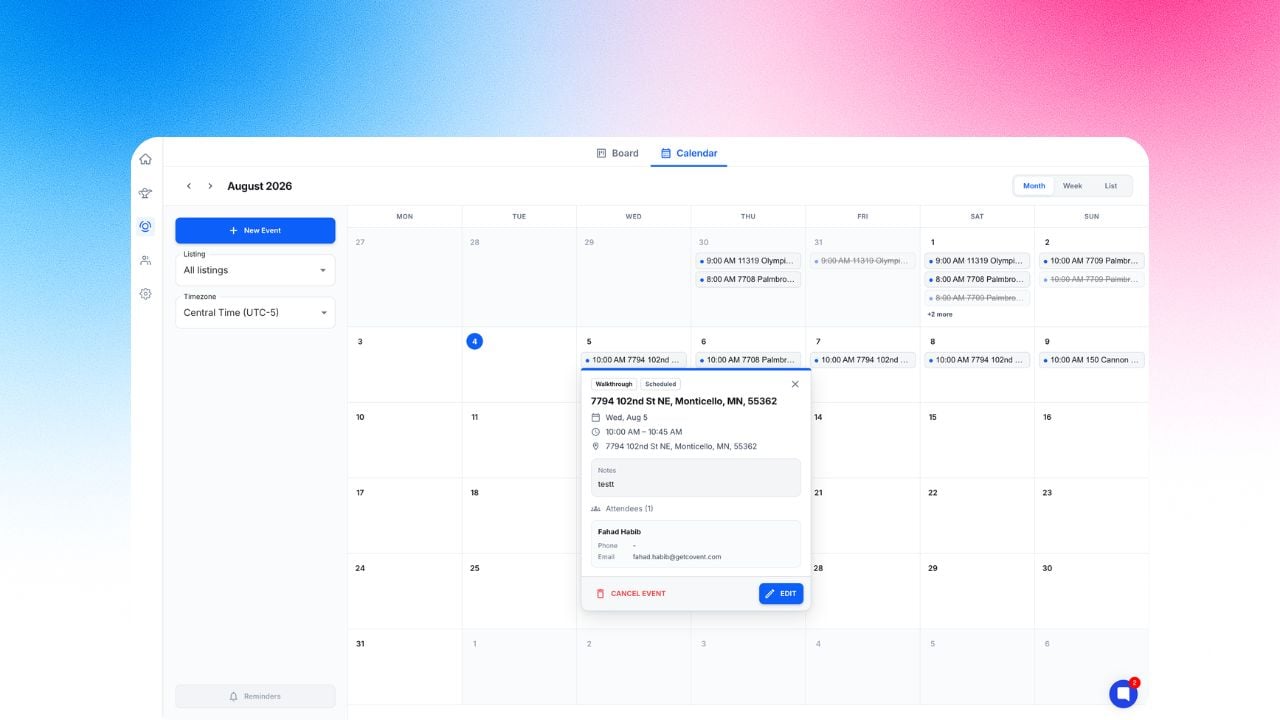
Image 5 – Walkthrough calendar with month, week, and list views
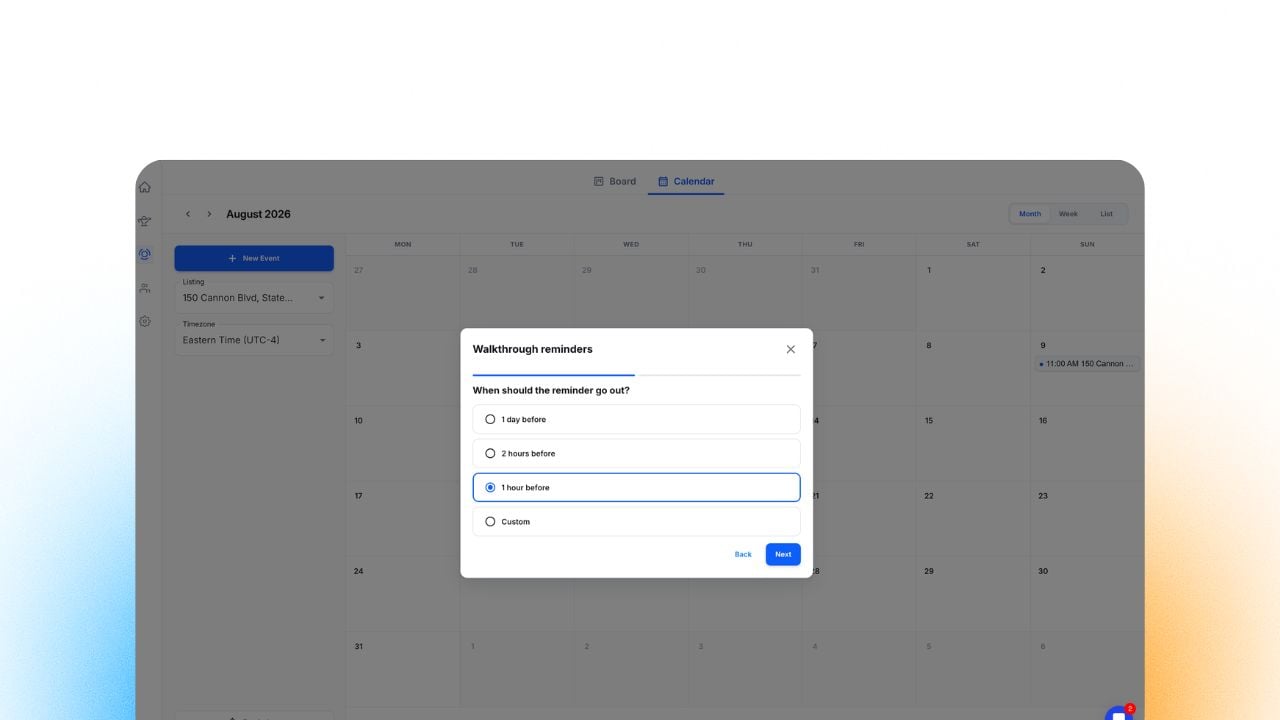
Image 6 – Create or edit a walkthrough and manage SMS reminders
Open Settings → Branding and save your company identity.
Choose which listing statuses and addresses buyers can see.
Connect your domain, or copy the provided company page URL.
Open Deals → Calendar to manage walkthroughs and reminders.
All of these features are live now.